GLG Call Access and User Guide
Call Participants
A guide for experts and client users joining the call.
Tips for a Successful Call
To ensure the best possible experience, please review the following recommendations before joining:
- Audio: Use a headset with a microphone for the best audio quality. Avoid using your device directly (typing, clicks, and echoes will be heard by others).
- Connection: Ensure you have a strong internet connection. Wired or Wi-Fi is best, but a strong mobile signal is sufficient.
- Environment: Avoid crowded or loud spaces, as background noise may interfere with your ability to communicate.
- Browser: We recommend using Chrome or Safari. Other browsers, such as Edge and Firefox, may function correctly; however, full compatibility is not guaranteed.
- Stability: Avoid moving locations while on the call to prevent signal drops.
- Compatibility: Click this link to check if your equipment is compatible.
Joining GLG Calls
GLG calls are primarily conducted via Zoom, offering options for app, browser, and telephone connectivity. Below are best practices and answers to common questions
How do I join GLG calls?
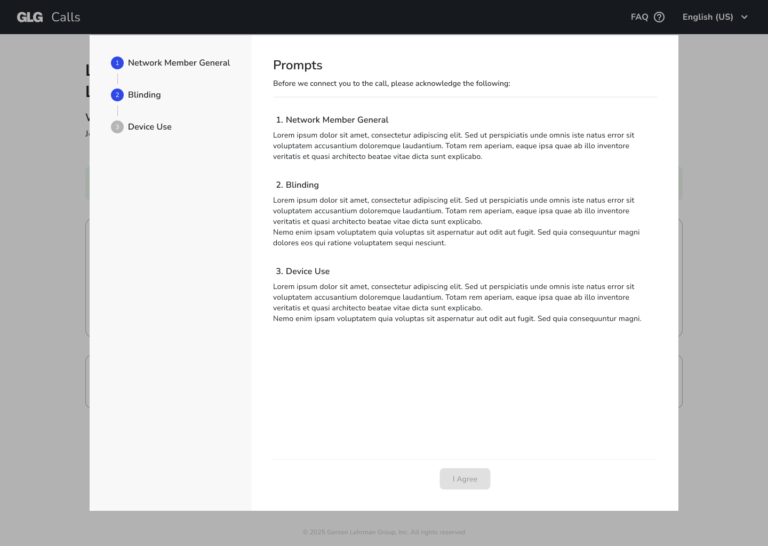
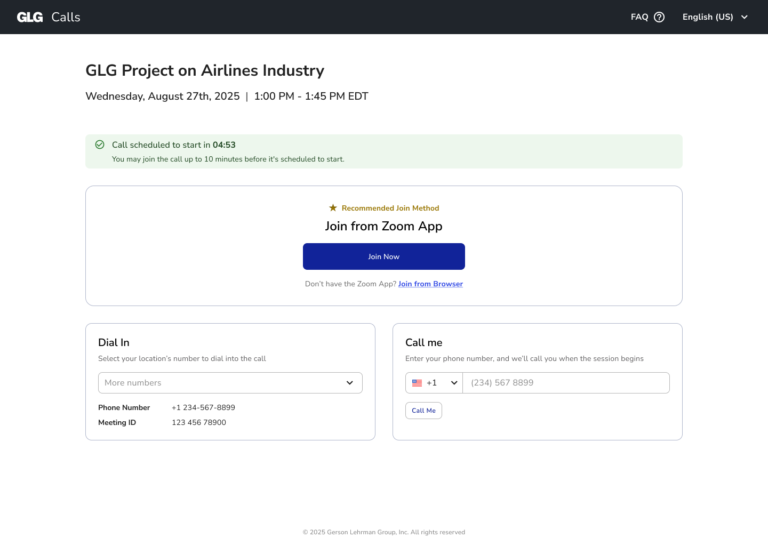
Once both parties have confirmed a time, GLG will generate a calendar invite. Click the link in the invite to access the pre-call compliance reminders. After reviewing and agreeing to these reminders, you will see all available join options:
- Join via app: recommended for the best experience.
- Join via browser: no download required.
- Dial-in: select from more than 110 available countries in the dropdown menu.
- Call me: enter your phone number and have the system dial out to you.
What device should I use?
We recommend using a laptop or desktop computer with the most up-to-date version of your browser or apps. You can also join GLG calls via smartphone or tablet, but please be sure to test your connection prior to the call. For calls on mobile devices, we recommend using the native Zoom app.
Can I dial in from outside of my home country?
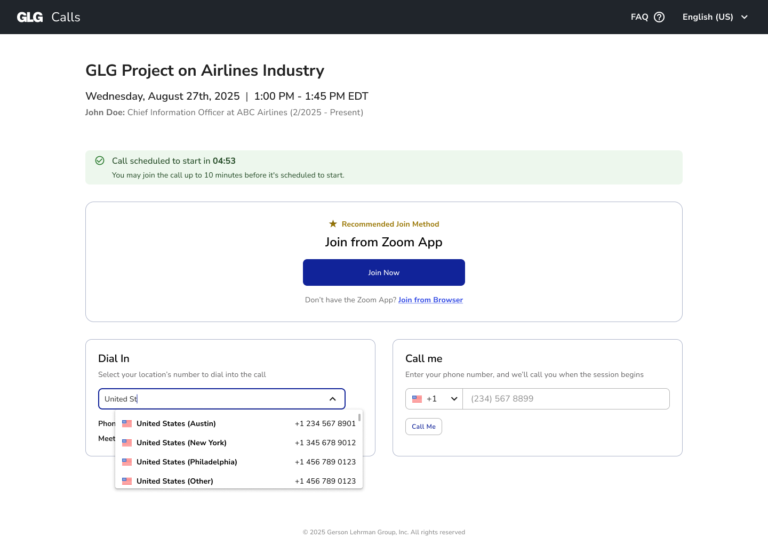
Yes. Whether you’re traveling or located internationally, we offer dial-in options for more than 110 countries. When you click the link to join the call, you will see a dropdown list of available countries from which you can dial in.
What features do you offer on GLG calls?
The features available are dictated by client preference and settings. GLG offers calls with:
- Video and screen share (when approved).
- Recording and transcripts (when approved).
- Note: chat and notes are disabled for all GLG calls.
- Also, if you are a client user and would like to enable specific features, please contact your GLG Client Solutions team.
Who do I contact for any technical difficulties during the meeting?
Please reach out to the GLG contact who scheduled the call.
There is a disclaimer on GLG calls about third-party apps accessing the call. What does that mean?
A GLG-developed and approved app may join calls, primarily for the purpose of compliance monitoring.
What if my firm does not allow Zoom?
Please contact your GLG Client Solutions team if your firm has policies against using Zoom. While Zoom is our default provider, we can offer other options.
Compliance Auditors
A guide for chaperoning GLG calls.
Tips for a Successful Call
Auditor FAQs
- Audio: Use a headset with a microphone for the best experience if you plan to join the call visibly to participate or intervene.
- Connection: Ensure you have a strong internet connection (wired or Wi-Fi is preferred).
- Device: We recommend using a laptop or desktop computer with the most update-to-date version of your browser. You can also view calls via browser on your mobile device, but please note that audio may cut out when your device is locked or on a different app.
- Browser: We recommend using Chrome or Safari. Other browsers may function but are not supported.
- Compatibility: Click this link to check if your equipment is compatible.
Which providers do you use for GLG calls?
Zoom is the primary provider for GLG calls. It offers exceptional call stability, enhanced audio quality, and telephony coverage in over 110 countries. In rare situations where a client is unable to use Zoom, we are able to transition to another telephony platform.
How can I join a GLG call as an auditor?
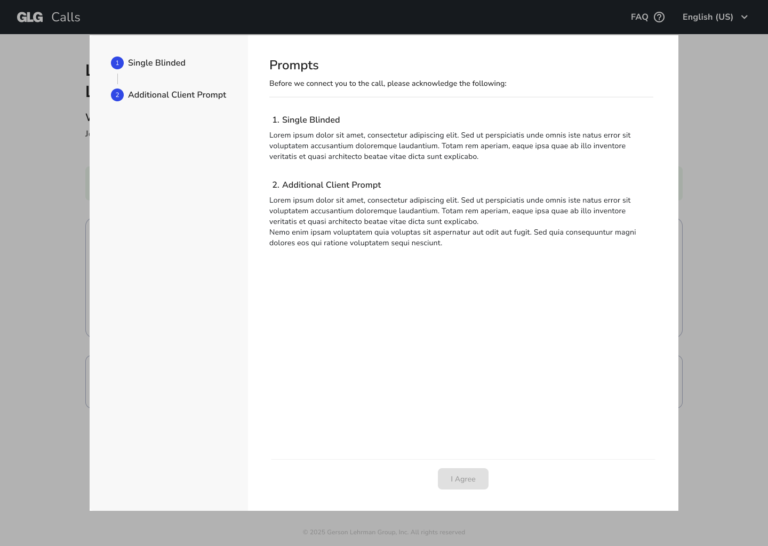
Once a time is confirmed, GLG generates a calendar invite. Click the link in the invite to access pre-call compliance reminders. After agreeing to the prompts:
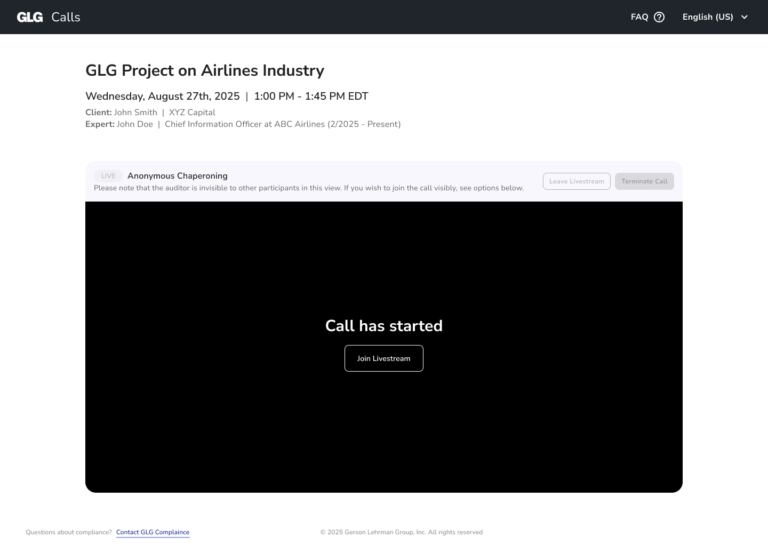
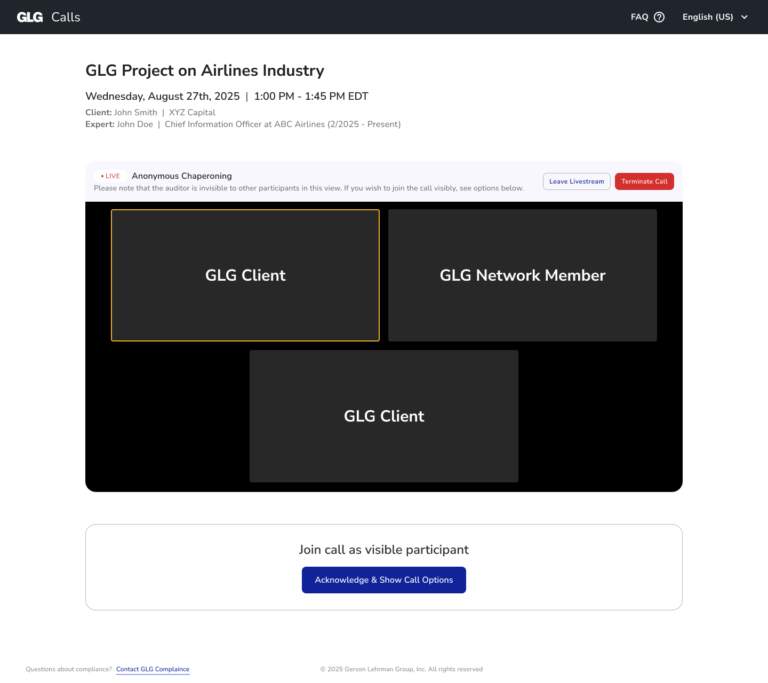
- For anonymous chaperoning: Click “Start Now” to start the livestream and view the call anonymously via your web browser. Note: there are no dial-in or app options for anonymous chaperoning.
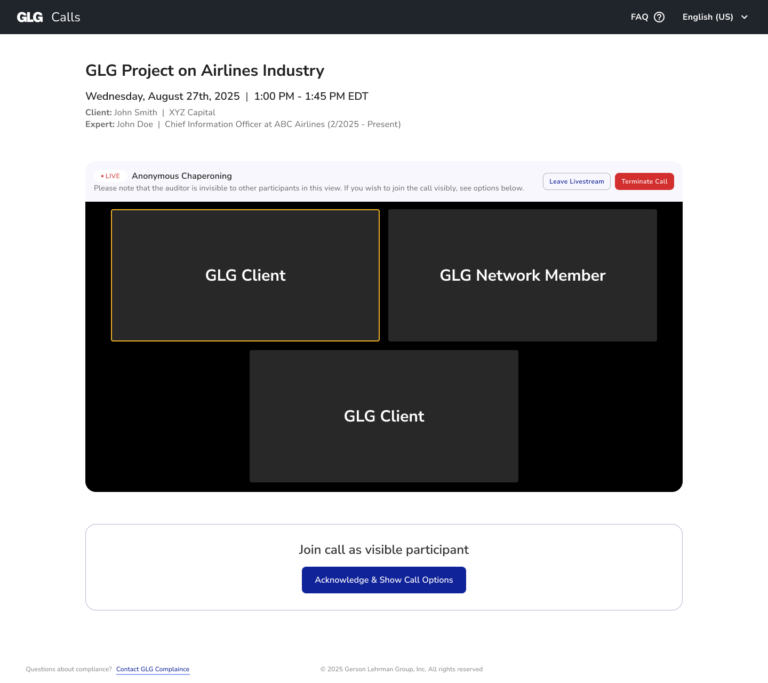
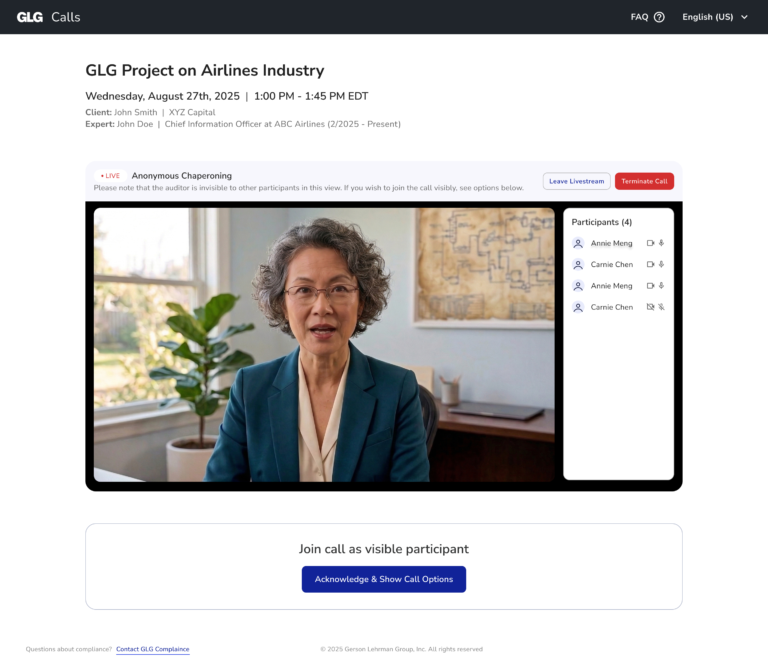
- To join a call visibly: If you need to speak, click the blue button at the bottom of the page to “Join call as visible participant.” You will then be prompted to join via app, browser, or phone.
What compliance settings and controls does GLG offer for calls hosted on Zoom?
- Default Settings: Video, screen share, recordings, and transcripts are disabled unless previously approved. Chat, notes, and whiteboards are disabled on all calls.
- Anonymity: Experts and client users are automatically renamed “GLG Network Member” and “GLG Client” upon entering.
- Auditor Controls: During the call, you have the ability to:
- View the call anonymously (audio-only calls appear in gallery view; video calls appear in speaker view).
- Join the call visibly to participate or interject.
- Pause the livestream (temporarily leave).
- Terminate the call for all participants.
What happens when I terminate a call?
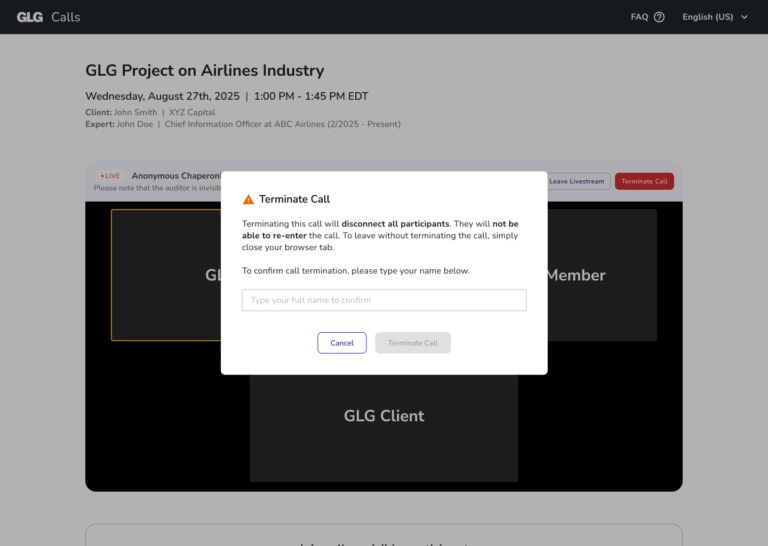
If you select the “Terminate Call” option, you will be prompted to enter your name. An automated “Goodbye” message will play, and the call will immediately disconnect for all participants. Once terminated, participants cannot re-join.
What does “Leave Livestream” do?
“Leave Livestream” allows you to pause the livestream (effectively stepping away from the call). If you restart the livestream, you will pick up the live call at the current moment (there is no fast forwarding or rewinding).
How do I leave the call?
To leave the call without ending it for others, simply exit your browser window. Do not click “Terminate Call” unless you intend to end the session for everyone.
What if my firm does not allow Zoom?
Please contact your GLG Client Solutions team if your firm has policies against using Zoom. While Zoom is our default provider, we can offer other options.
How do I contact GLG Compliance?
Clicking the link at the bottom of the landing page will generate an email to GLG Compliance (GLGCompliance@glgroup.com).